
How to Create a Client List with Background Check Details Using Excel
8/23/20252 min read
* Disclaimer: Storing personal and sensitive information like social security numbers in Excel or any non-secure environment is risky and can be a violation of privacy laws or regulations. Ensure you have the right permissions and security measures in place.
First, Open Excel.
Setting Up the Spreadsheet:
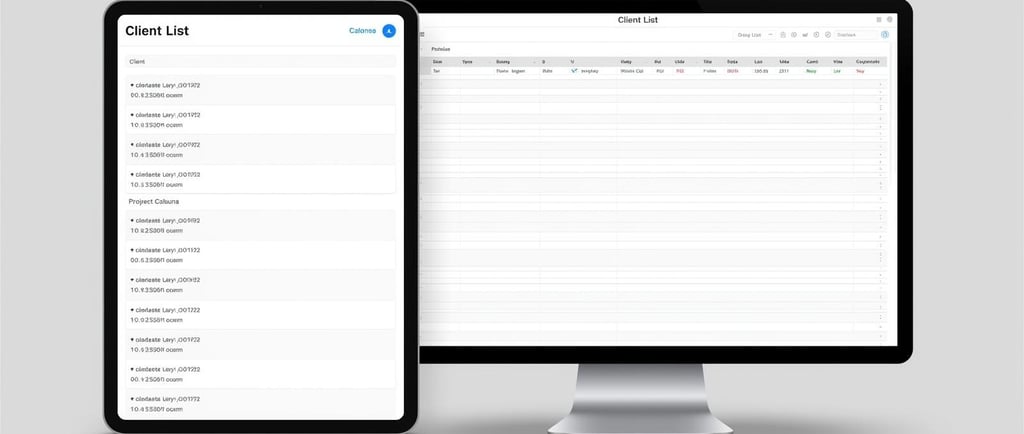
Start by creating the columns in the first row:
A1: Client Name
B1: Previous Names/Aliases
C1: Date of Birth
D1: Place of Birth
E1: Social Security Number
F1: Type of Background Check
G1: Authorization Received (Y/N)
Formatting the Columns:
Date of Birth: Click on column C > Go to Format in the top menu > Choose Cells > Under the Number tab, select Date and choose your preferred format.
Social Security Number: To ensure leading zeros aren’t removed, format this as text. Click on column E > Go to Format > Choose Cells > Under the Number tab, select Text.
Adding Dropdown Lists for Consistency:
Type of Background Check: To add a dropdown list for this column, select where you want the dropdown (e.g., F2). Go to Data > Data Validation. Under Allow, choose List and type the different types of checks you may request, separated by commas, in the Source box.
Authorization Received: Follow the same dropdown list steps for column G, but the source will simply be "Y,N" for Yes and No.
Entering Client Details:
Client Name: Enter the full name of the client.
Previous Names/Aliases: Enter any known aliases or previous names. If there are multiple, separate them with a comma.
Date of Birth: Enter the date in the format you've selected.
Place of Birth: Enter the city and state/country.
Social Security Number: Enter the full SSN. Be extremely cautious about storing this data, consider using pseudonyms or avoiding storage altogether.
Type of Background Check: Choose from the dropdown list you’ve created.
Authorization Received: Choose either Y (Yes) or N (No) from the dropdown list.
Protecting Sensitive Data:
It's crucial to ensure that sensitive information remains confidential.
You may consider protecting specific cells or sheets within the workbook to limit unauthorized edits.
Regularly Backup and Update Your List:
Make sure to save your work regularly and create backups, especially when dealing with important data.
Store backups in a secure location, and consider using encrypted storage solutions.
Review and Cleanup:
Periodically review the list to ensure accuracy and remove old or unnecessary data.
Ensure all entries are consistent in terms of format and content.
Final Note: Always consider seeking out and implementing more advanced security measures, especially when dealing with sensitive personal information. Consider consulting with IT professionals and being aware of local laws and regulations pertaining to data storage and protection.
KamBri Solutions LLC
Contact us
Subscribe to Our Newsletter
© 2026 KamBri Solutions. All rights reserved.